
My phone sat on the kitchen counter for three years before I found out it could scan a document, translate a menu in real time, and let me control it just by looking at the screen. Nobody told me. I stumbled onto every single one of these tricks by accident, usually while trying to do something completely unrelated.
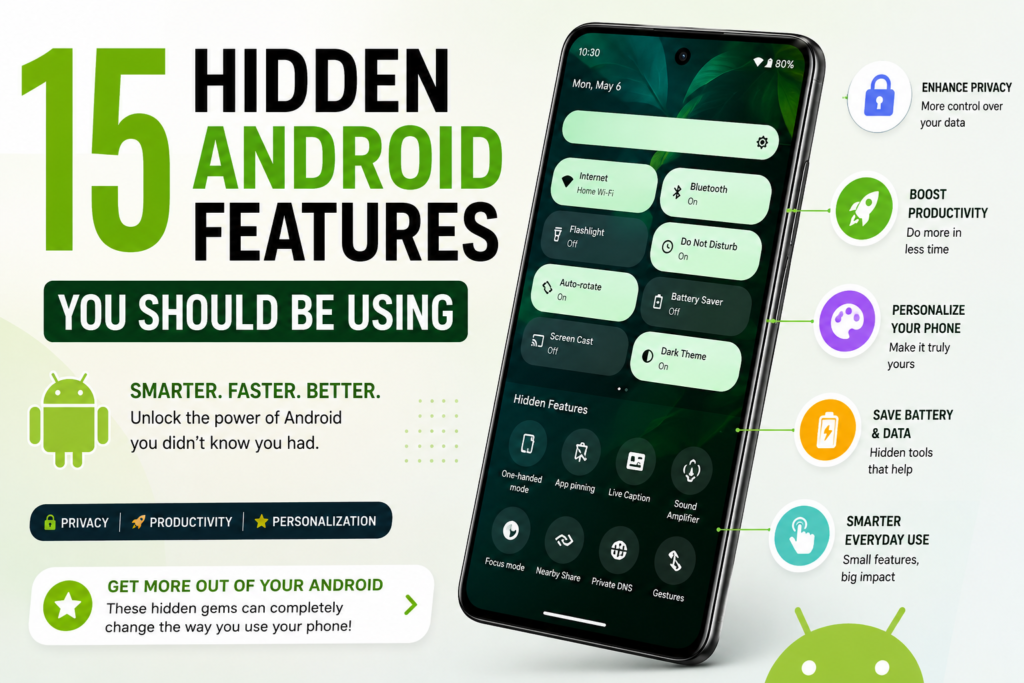
That’s the thing about Android. It’s stuffed with genuinely useful features that Google buries under three menus and never bothers to mention. Meanwhile your phone is sitting there quietly doing 40% of what it’s capable of.
I’ve spent the last few years testing phones from Samsung, Pixel, OnePlus, and a couple of budget Motorolas for work, and I keep running into the same pattern. People buy a phone, learn the basics, and then just… stop exploring. I did the same thing until a coworker showed me one setting that changed how I use my phone daily.
So here’s my actual list. Not the recycled “did you know you can change your wallpaper” nonsense you find everywhere. These are things I use weekly, things that solved a real annoyance, or things that made me go “wait, it does THAT?”
1. Bubble Level (Yes, Your Phone Has One)
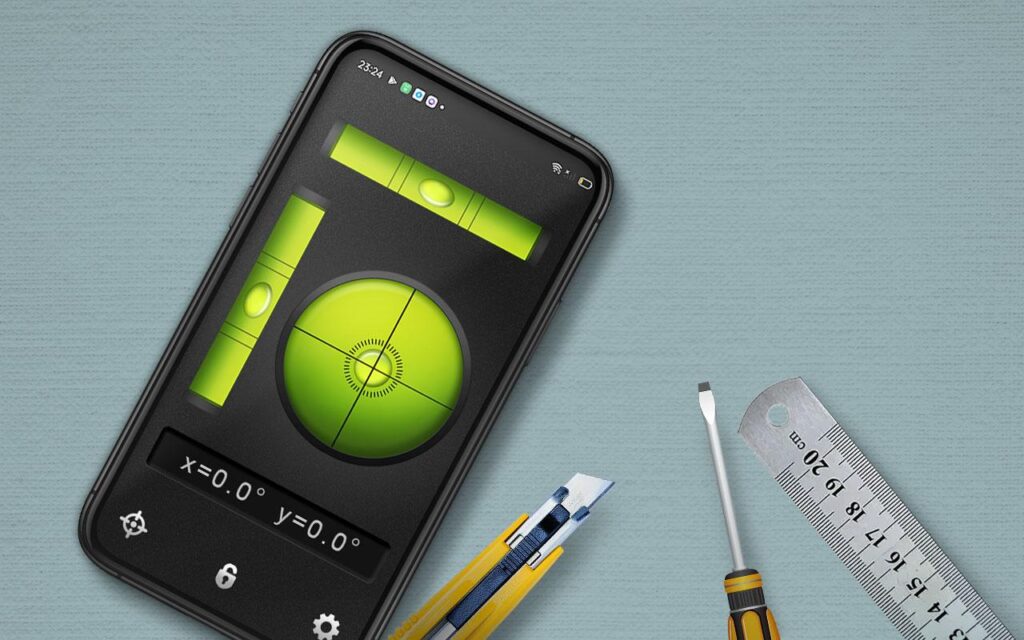
I found this while hanging a shelf and getting frustrated with a cheap plastic level that kept sliding off the wall.
Turns out most Android phones have a built-in level tool hiding inside the Measure app. Open Measure, swipe to the “Level” tab, and lay your phone flat or against a surface. It shows you exactly how tilted something is, down to the degree.
I’ve used this for hanging picture frames, checking if my washing machine was sitting evenly, and once to settle an argument about whether our dining table was actually crooked. It was. My wife was right. The phone confirmed it.
How to find it
Search “Measure” in your app drawer, or check under Google apps if it’s not visible. On Samsung phones, it’s sometimes bundled into the Camera app under “AR Zone.”
2. Live Caption for Literally Any Sound
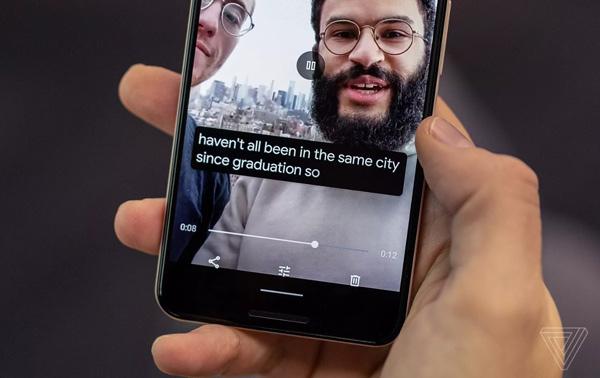
I turned this on originally for a video call in a noisy coffee shop, and now I basically can’t live without it.
Live Caption automatically adds subtitles to any audio playing on your phone. Videos, podcasts, voice messages, YouTube, even random Instagram reels with no captions built in. It works completely offline too, which surprised me.
I use it constantly when I’m watching something late at night and don’t want to wake anyone up, or when I’m in a loud gym and can’t hear a video clearly.
Turning it on
Go to Settings, then Sound and Vibration, then Live Caption. Flip the toggle. After that, a small caption icon shows up whenever media plays, and you tap it to activate captions instantly.
One thing worth mentioning, it doesn’t caption phone calls by default anymore on newer versions due to privacy changes, but for media playback it’s still fantastic.
3. Private Space for Apps You Don’t Want Everyone Seeing
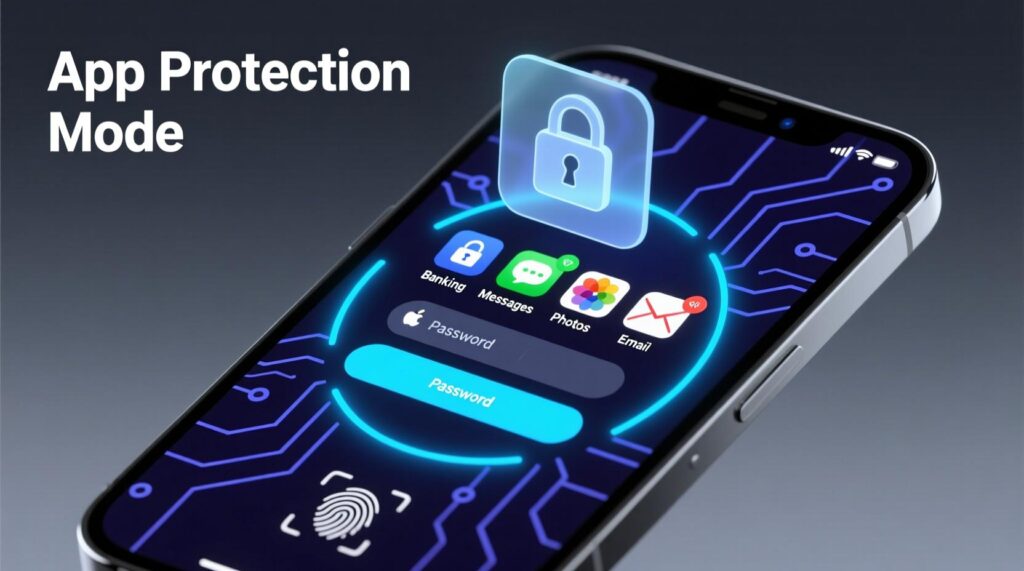
This one solved an actual problem for me. I share my phone with my kid occasionally for games, and I didn’t love the idea of banking apps or personal photos being one accidental tap away.
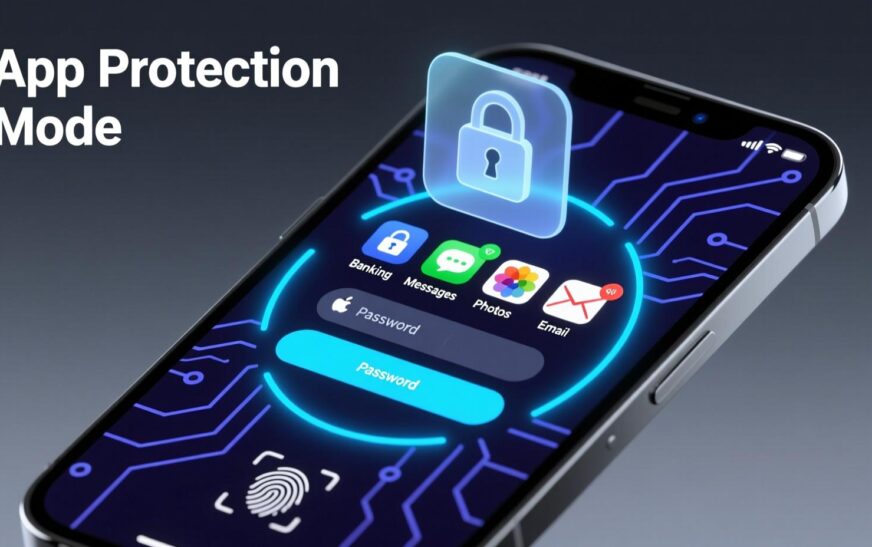
Private Space creates a completely separate, locked section of your phone with its own apps, own login, and own storage. It’s hidden from the main app drawer entirely unless you unlock it.
I moved my banking app, a journaling app, and a couple of work tools into mine. Nobody scrolling through my phone even knows that section exists.
Setting it up
Settings > Security and Privacy > Private Space. You’ll set a separate PIN or fingerprint, then start adding apps. It takes about five minutes and honestly feels like getting a second phone.
4. Circle to Search
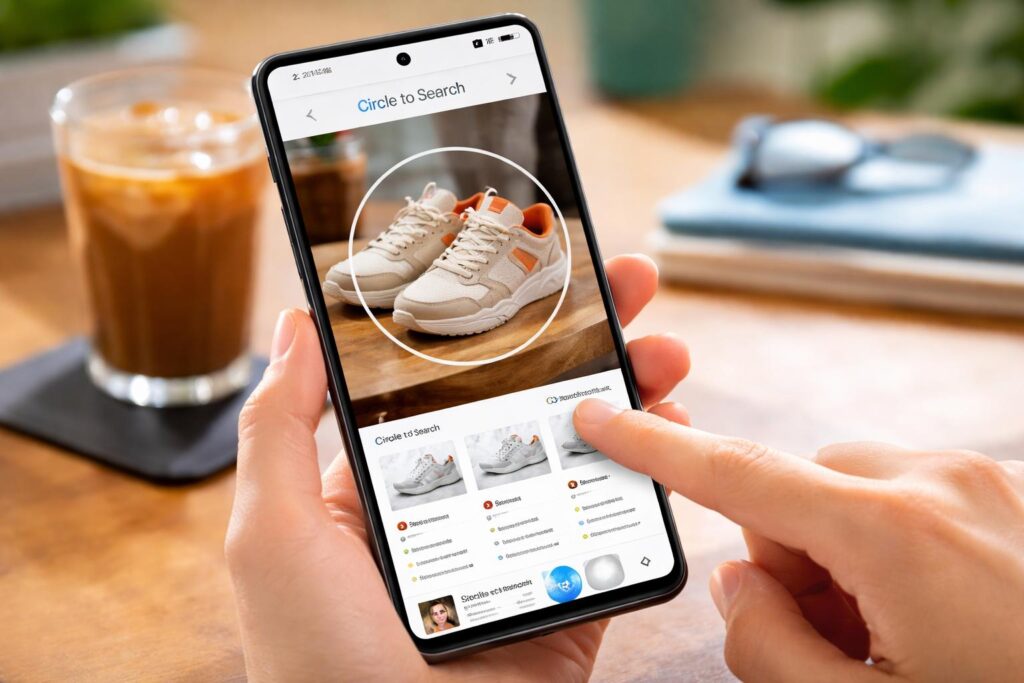
I resisted this feature for months because I assumed it was gimmicky. I was wrong.
Circle to Search lets you long-press the home button or navigation bar, then literally circle anything on your screen, a photo, a product, text, a face you don’t recognize, and Google searches it instantly without leaving the app you’re in.
I used it last week scrolling through a friend’s vacation photos on Instagram to find out where a specific restaurant was. Circled the sign in the background, got the name and location in three seconds.
Requirements
This feature needs a reasonably recent phone, mostly Pixel 8 and newer or recent Samsung Galaxy S24 and up, though it’s expanding to more devices over time. Check Settings > Search to see if it’s available on yours.
5. App Hibernation to Actually Save Battery
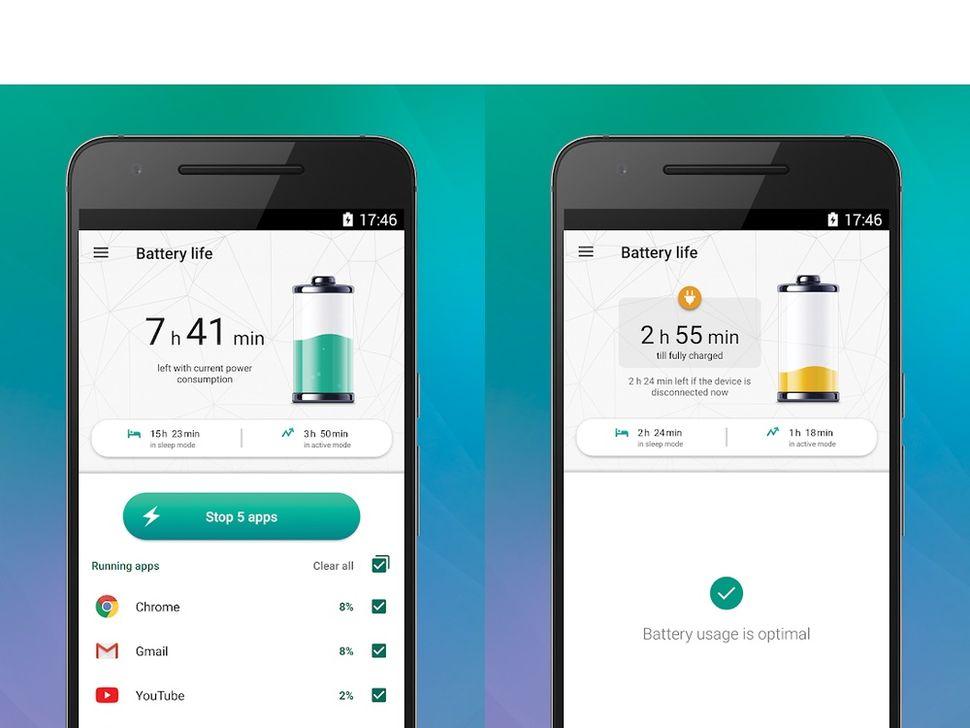
I noticed my phone was draining battery overnight even though I wasn’t touching it. Turned out three apps I barely opened were still running background tasks constantly.
App Hibernation automatically freezes apps you haven’t used in a while, cutting off permissions and background activity until you open them again.
Once I let this run for two weeks, my standby battery drain dropped noticeably. Not a dramatic transformation, but enough that I stopped needing to charge midday.
Where to check it
Settings > Apps > select an unused app > you’ll see “Unused apps settings” with hibernation options. Android also does a lot of this automatically now, but you can manually force it for specific apps.
6. Partial Screenshot and Scrolling Screenshot
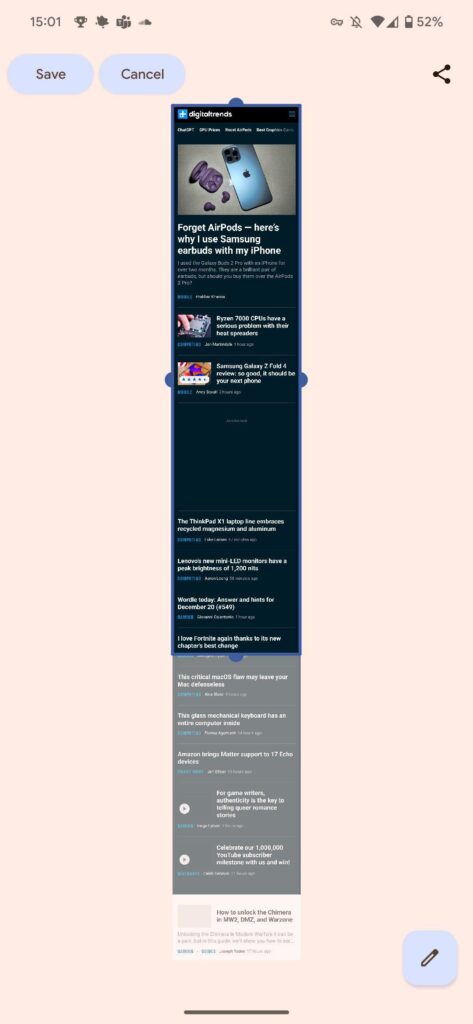
For years I took multiple screenshots of long conversations or receipts and stitched them together manually like some kind of caveman.
Then I found scrolling screenshots. Take a normal screenshot, and a small toolbar pops up at the bottom with a “Capture more” or “Scroll capture” option. Tap it, and the phone keeps extending the screenshot downward as far as you want.
I use this constantly for saving long email threads, entire recipe pages, or full group chat conversations for reference later.
Quick steps
- Take a screenshot like normal, power plus volume down.
- Look for the scrolling arrow icon in the preview toolbar.
- Tap it repeatedly or drag to capture as much as needed.
- Save or crop before sharing.
7. Guest Mode for Lending Your Phone
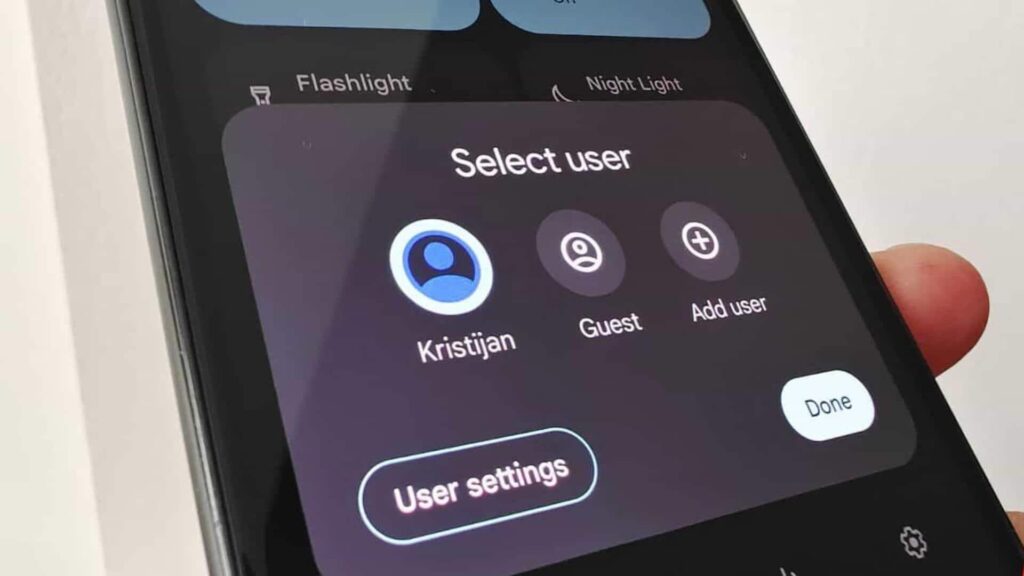
My mother-in-law asked to borrow my phone to check her email once, and I panicked slightly watching her navigate near my messages and apps.
Guest Mode creates a temporary, clean version of your phone with no access to your personal data, apps, or accounts. When they’re done, you switch back and everything they did disappears.
Now anytime someone needs to make a quick call or check something online on my phone, I hand it over in Guest Mode without a second thought.
Activating it
Swipe down twice for quick settings, tap your profile icon, and select “Add guest.” Some phones put this under Settings > System > Multiple users instead.
8. Notification History (Because You Definitely Swiped Something Away by Accident)
I cannot count how many times I’ve dismissed a notification too fast and then spent ten minutes trying to remember what it said.
Notification History logs every notification your phone receives, even ones you’ve cleared, for 24 hours by default.
This has saved me more than once when I accidentally cleared a delivery update or a message preview before actually reading it.
Enabling it
Settings > Notifications > Notification History. Turn it on, and from then on you can scroll back through anything you missed.
9. Adaptive Charging to Protect Your Battery
I plug my phone in overnight like most people, which technically isn’t great for long-term battery health since it sits at 100% for hours.
Adaptive Charging learns your schedule and slows charging speed once your phone hits around 80%, then finishes the last bit right before your usual wake-up time.
After using this for about six months, my battery health percentage stayed noticeably higher compared to my previous phone at the same age.
Turning it on
Settings > Battery > Adaptive Charging (or Battery Care on Samsung devices). It usually asks to learn your alarm pattern first.
10. One-Handed Mode for Big Phones
Phones keep getting bigger, and my thumbs did not get any longer to match. Reaching the top of the screen one-handed used to mean awkwardly shifting my grip and almost dropping the phone.
One-Handed Mode shrinks the entire screen down into a smaller, reachable window temporarily.
How to trigger it
Settings > System > Gestures > One-handed mode. Once enabled, swipe down on the bottom edge of the screen, or on some phones, triple-tap the home button. The screen shrinks and slides to whichever side you tap.
I use this constantly on the subway when I only have one free hand and a death grip on a pole with the other.
11. App Pinning for Handing Off Your Phone Without Worry
Similar problem to Guest Mode but for a specific situation. I let people play a game on my phone sometimes, and I didn’t want them accidentally backing out into my texts or apps.
App Pinning locks the screen to one single app. The person can play the game or watch the video, but they physically cannot exit to anything else without a PIN.
Setting it up
Settings > Security > App Pinning, turn it on. Then open the app you want to lock, tap recent apps, and tap the pin icon on that app’s card.
12. Sound Amplifier for Hearing Things Clearly
My grandfather started struggling to hear conversations in restaurants, and I found this almost by accident while looking into accessibility settings.
Sound Amplifier uses your phone’s microphone and headphones to boost quiet sounds and reduce background noise in real time, essentially turning your phone into a basic hearing aid.
It genuinely made a difference for him at family dinners, and I’ve also used it myself to hear quiet dialogue in movies without blasting the volume for everything else.
Getting it
Search “Sound Amplifier” on the Play Store if it’s not preinstalled, then connect wired or Bluetooth headphones and adjust the boost sliders.
13. Extra Dim for Nighttime Scrolling
Even at the lowest brightness setting, my phone screen still felt way too bright when scrolling in bed at 1am.
Extra Dim pushes brightness below the normal minimum, dimming the whole screen further than standard settings allow.
Where it lives
Settings > Display > swipe brightness slider down, or Settings > Accessibility > Extra Dim. Some phones let you schedule it automatically after sunset.
My eyes thanked me the first night I turned this on.
14. Nearby Share for Instant File Transfers
I used to email myself photos or use random third-party apps just to move a file from my phone to my laptop or another Android device. Completely unnecessary once I found Nearby Share.
It’s Android’s version of AirDrop. Select a file, tap Share, choose Nearby Share, and it transfers directly over Bluetooth or WiFi to any nearby device with Nearby Share turned on, no internet or cables required.
Quick use
- Open the file or photo you want to send.
- Tap the share icon.
- Select Nearby Share.
- Pick the device from the list that appears.
I now send large video files to my partner’s phone in seconds instead of waiting on a slow upload.
15. Do Not Disturb with People Exceptions
I used to either mute everything during work hours or leave notifications on and get constantly interrupted. Neither option worked well.
Do Not Disturb lets you allow specific contacts through even while everything else stays silent. So if my partner calls twice within fifteen minutes, it breaks through as an emergency alert, but random spam calls and app notifications stay muted.
Customizing it
Settings > Notifications > Do Not Disturb > People. Add starred contacts or allow repeat callers through. You can also schedule specific hours automatically, like every weekday from 9 to 5.
Mistakes I Made Learning These Features
I turned on Extra Dim once and forgot about it, then spent ten confused minutes thinking my screen was broken in bright daylight.
I also enabled App Hibernation on a messaging app I actually used daily, and missed a few notifications until I figured out why messages were arriving late.
And Guest Mode tripped me up once when I forgot to switch back before handing my phone to a friend, so they couldn’t find any of my apps and thought something was wrong with the phone.
None of these are big deals, but they’re worth knowing about before you dive in headfirst.
A Few Tips Before You Start Digging Around Yourself
Not every feature exists on every phone. Samsung, Pixel, and OnePlus all customize Android differently, so menu names shift around depending on your device and software version.
Check your software version first under Settings > About Phone, since some of these features only arrived in the last year or two of Android updates.
If a setting mentioned here doesn’t show up, search for it directly in your Settings app search bar instead of digging through menus. It usually pops up even if it’s tucked away somewhere unexpected.
Final Thoughts
Your phone is doing a lot more than you probably realize right now. Most of these tools sat unused on my devices for years simply because nobody pointed them out, and Google’s own settings menu isn’t exactly built for discovery.
Pick two or three from this list that solve an actual annoyance inand try them this week. That’s really how I found most of these anyway, not through some grand tech deep dive, but by getting mildly annoyed at something small and going looking for a fix.
Chances are your phone already had the answer waiting.